Beta · Quick Start Guide

Sculpt faster
with RadialZ

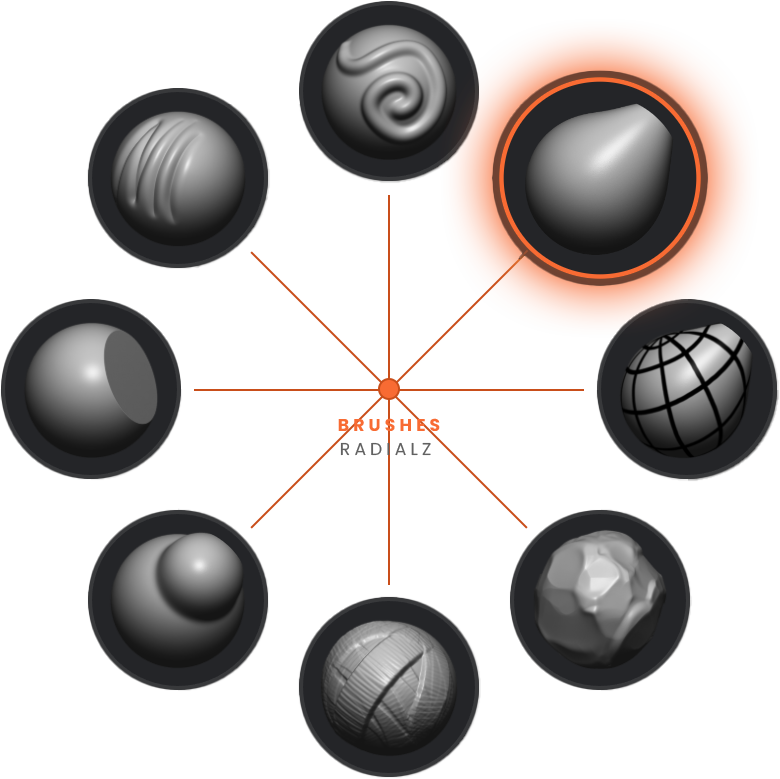
A floating radial brush picker for ZBrush. Press a hotkey, hover a brush, release — no more palette hunting.

Download RadialZ Windows · ZBrush 2026 required
⚡ ZBrush Bridge 🖥 Windows 📚 1100+ brushes 🔄 Auto-updates

ZBrush Bridge

Loads any brush instantly via a silent background hotkey. Drag brushes from the library into slots — no manual shortcuts needed.

🎨

Multiple Menus

Create separate radial menus for brushes, tools, or custom shortcuts — each with its own hotkey and colour scheme.

👶

Children Slots

Each slot holds up to 3 child brushes. Hover to expand a sub-menu without leaving your canvas.

📚

Brush Library

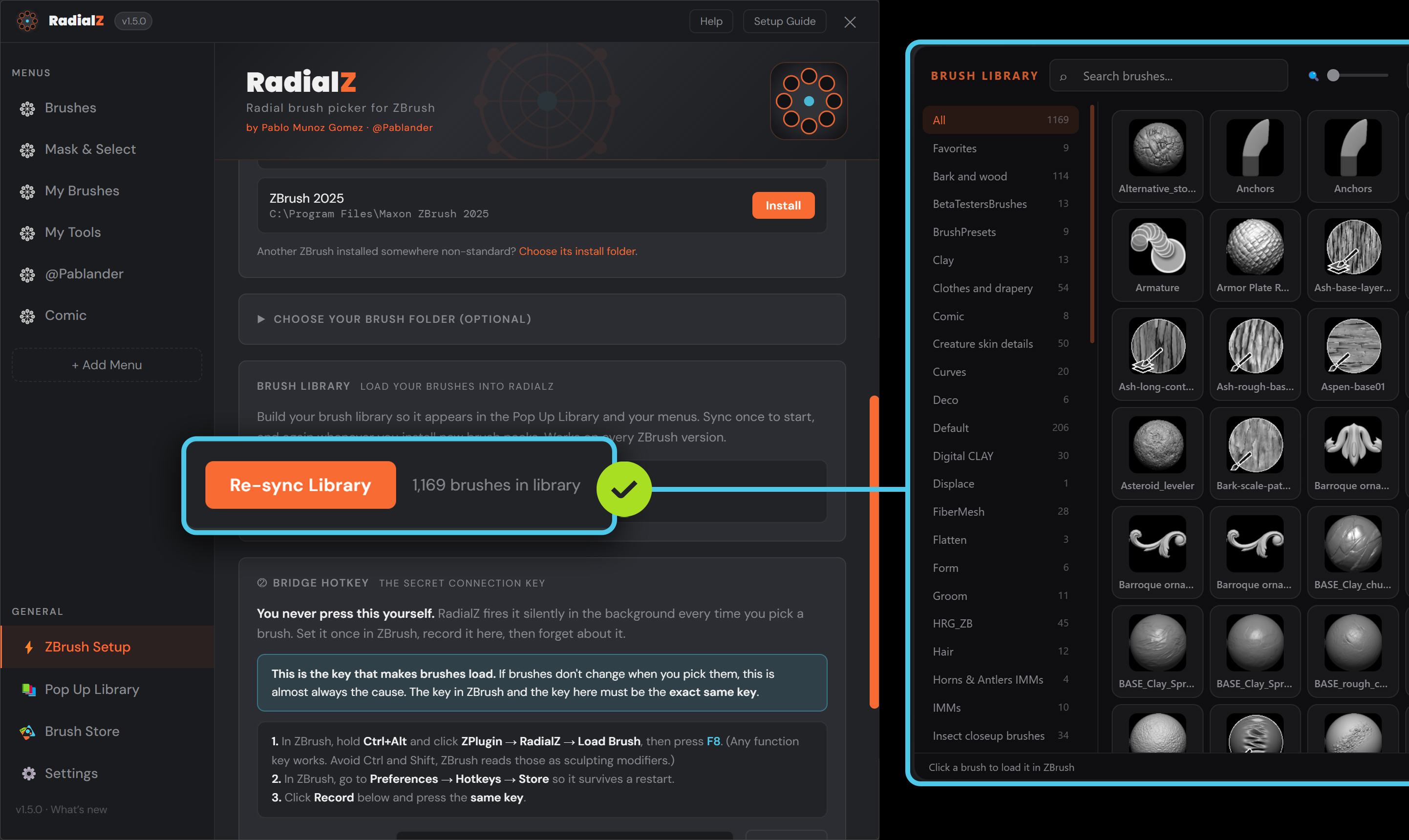
All your ZBrush brushes in one searchable panel. Filter by category, zoom thumbnails, drag into slots.

🎬 Hover to preview · Release to load
Hover and select

Hover over a slot to highlight it — children appear automatically. Release the hotkey to load the brush.

Getting Started

Follow these steps once to connect RadialZ to ZBrush. After that, everything is automatic.

1

Select your ZBrush user folder

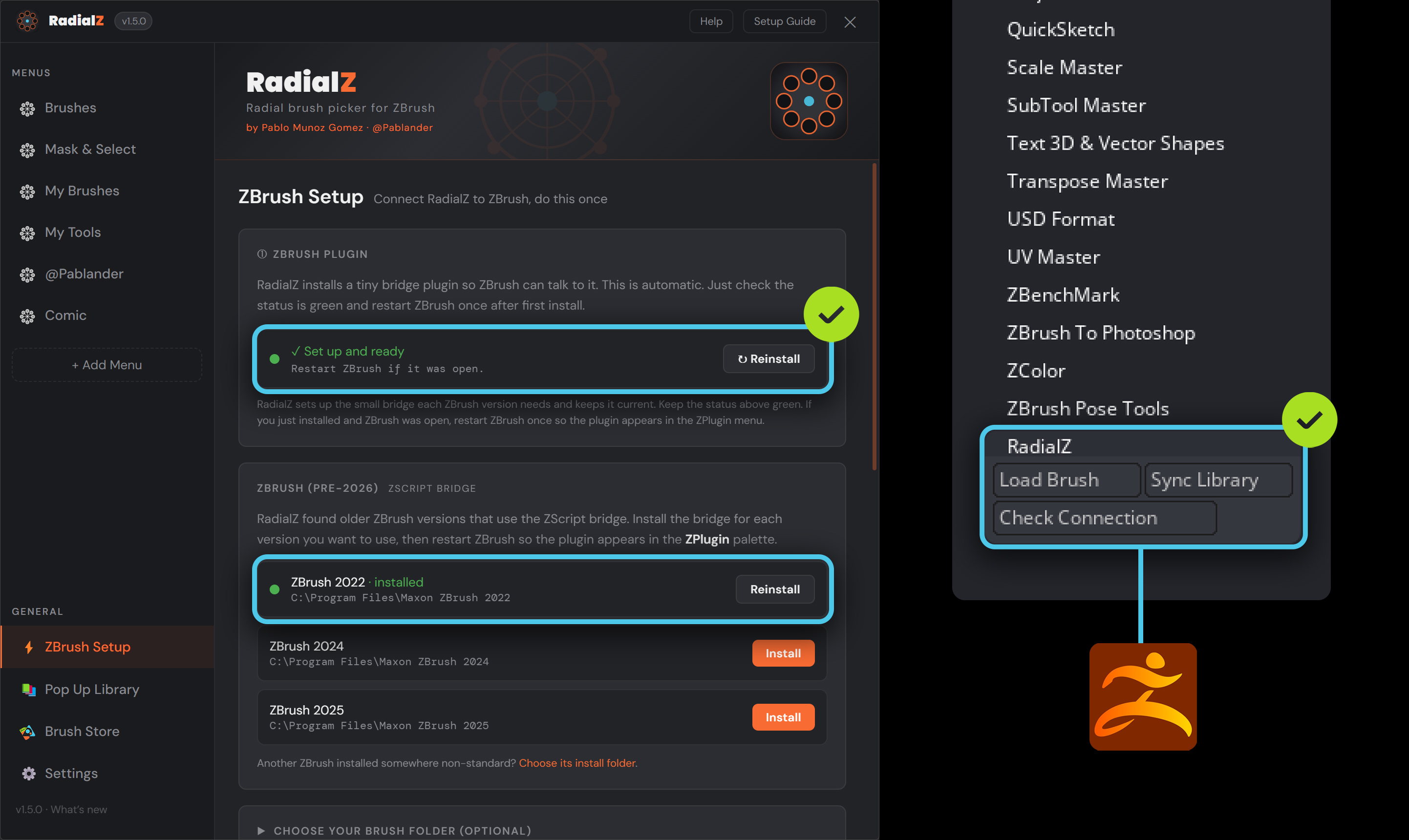
Open Settings → ZBrush Bridge and click Browse. Select the folder set in ZBrush under Preferences → Asset Directory. RadialZ installs the bridge plugin there automatically.

2

Restart ZBrush

Restart ZBrush to load the plugin. You should see ZPlugin → RadialZ appear with three buttons: Load Brush, Sync Library, and Check Connection.

3

Assign a hotkey to Load Brush

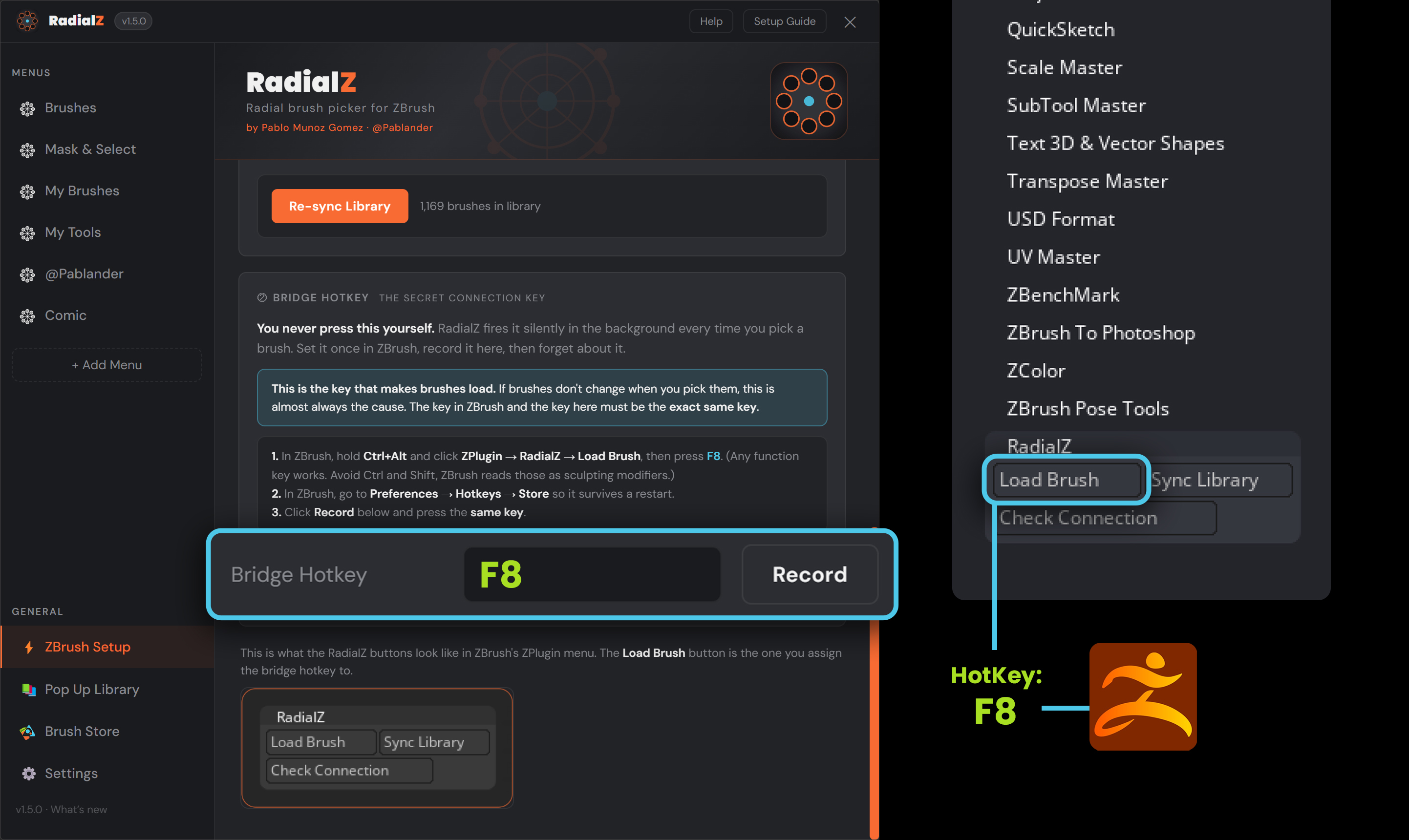
In ZBrush, hold Ctrl+Alt and click ZPlugin → RadialZ → Load Brush. Choose something unique — e.g. Ctrl+Shift+Alt+F12.

4

Enter that hotkey in RadialZ

In Settings → ZBrush Bridge → Bridge Hotkey, click Record and press the same combination. RadialZ fires this silently every time you select a brush.

5

Sync your brush library

In ZBrush go to ZPlugin → RadialZ → Sync Library. This scans all your brushes and builds the library. Re-run whenever you add new brushes.

You're all set!

Open the Brush Library from the tray icon, drag brushes into your radial menus, and start sculpting.

Settings

Settings panel — manage menus, assign hotkeys, and customise per-menu colours

Using RadialZ

RadialZ lives in your system tray. Right-click the tray icon to access settings, library, and menus.

ActionHow to do it
Trigger a radial menuPress the hotkey assigned to that menu. The radial appears under your cursor.
Select a brushHover over a slot and release the hotkey — loads instantly in ZBrush.
Access child brushesHover a slot with dots below — children expand. Hover a child to select.
Open brush libraryPress your Library Hotkey or right-click the tray icon.
Add a brush to a menuOpen the library, find a brush, drag onto a slot in the radial preview.
Reorder slotsClick a slot to select it, use the ↺ ↻ buttons in the detail panel.
Custom shortcutsClick an empty slot in the editor, click Record and press your ZBrush shortcut.
Brush Library

The Brush Library — search, filter by category, zoom thumbnails. Resizable and pinnable.

Editing Your Menus

Click Edit Menu on any menu in Settings to open the full editor.

Menu Editor

The Menu Editor — radial preview on the left, brush library on the right.

🎬 Double-click a slot to enter children mode
Adding children

Double-click any slot to enter children editing mode. Drag brushes from the library onto child nodes. Each slot supports up to 3 children.

🎬 Click a slot then use ↺ ↻ to rotate around the radial
Reordering

Click any slot to select it, then use the ↺ ↻ rotation buttons. The selection follows the brush as it moves.

Remove a brush

Hover over any slot — a red appears in the top-right corner. Click it to clear the slot.

Custom shortcuts

Any slot without a bridge brush can fire a ZBrush shortcut. Click the slot, click Record and press your key combination. Great for tools, masking, or any ZBrush command.

Tips & Tricks

💡
Use a unique bridge hotkey. Avoid keys you use in ZBrush. Ctrl+Shift+Alt+F12 is safe — only fired silently by RadialZ.
🔄
Re-sync after adding brushes. Run ZPlugin → RadialZ → Sync Library whenever you install new custom brushes.
📌
Pin the library. Click Pin to keep it open while sculpting and test brushes without closing it.
Use Favourites. Star your most-used brushes. Click Favourites in the category list to filter to starred brushes only.
🎨
Customise per menu. Each menu has its own colour palette in Settings.
🔍
Check connection anytime. If brushes stop loading, click ZPlugin → RadialZ → Check Connection in ZBrush.
🐛
Found a bug? Your feedback matters. Reach out to @Pablander on Instagram or Twitter.